Everything you need to manage a large WooCommerce catalogue, without writing a line of code.
A view is the combination of two choices. The filters decide which products to include: category, price, stock, attributes, language, custom fields. The columns decide what you see and what you can edit. You create it once and reuse it whenever you need it.
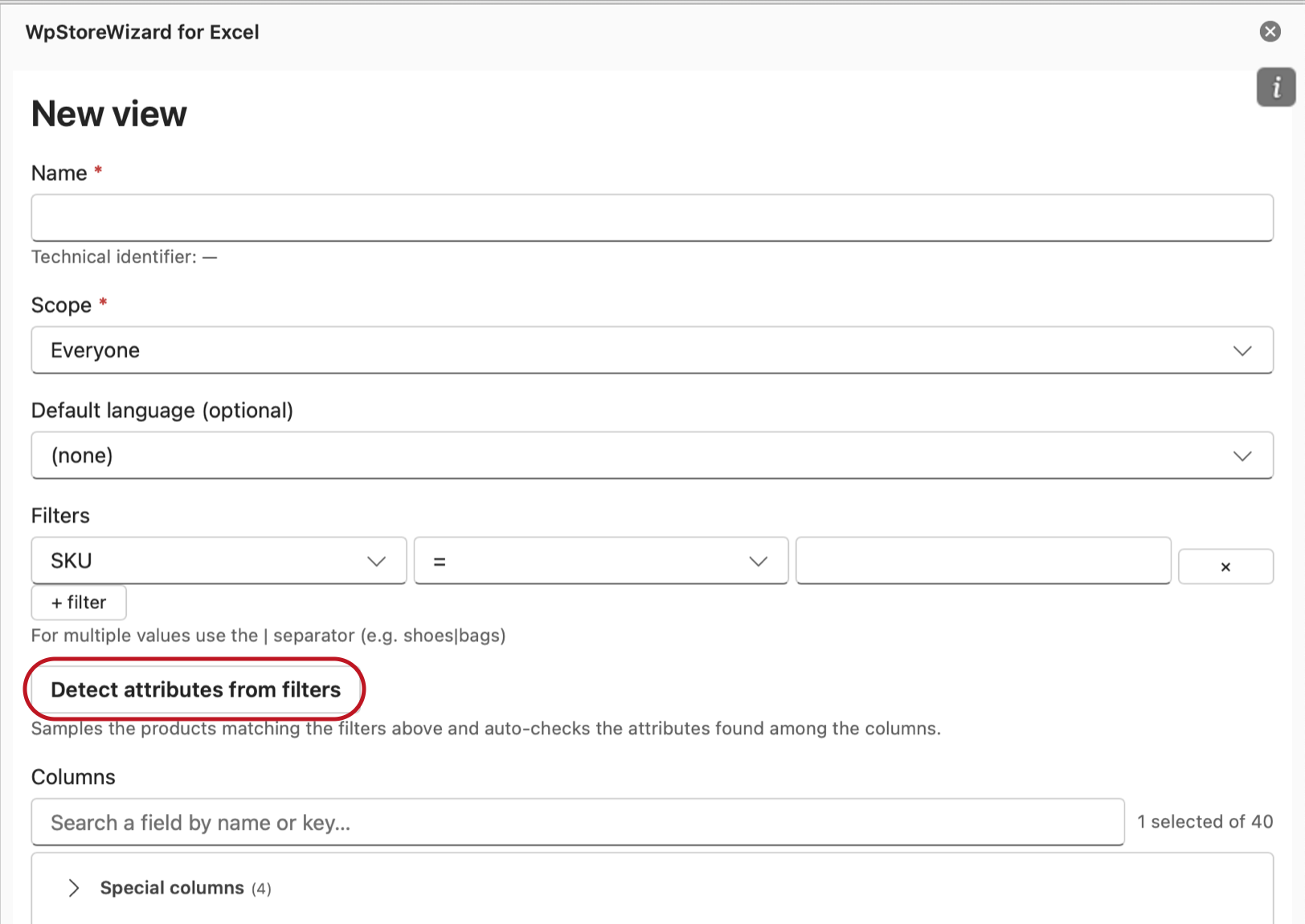
The filters select which products enter the view. The «Detect attributes from filters» button reads those products and ticks on its own the attribute columns they actually use.
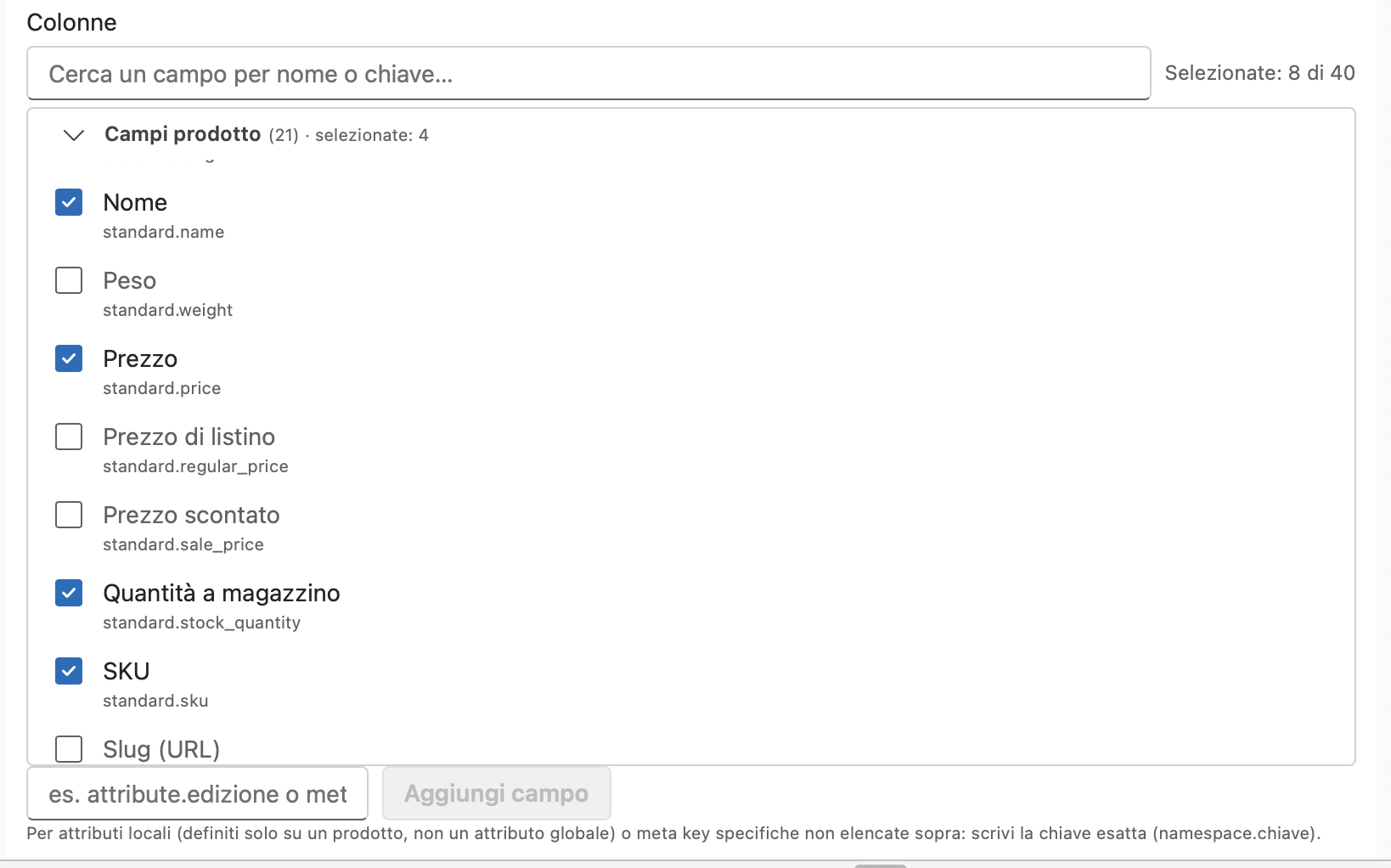
The columns are also the writing perimeter. Only the fields ticked here will be editable from that view. Everything else stays untouchable.
Variations can be edited in bulk too. Every variation comes down into the sheet as a row, indented beneath its product, with its own code, price and stock. You add new ones from the panel, with «Add variation to the selected row». An attribute can be used in variations only if it is marked «used for variations» on the product.
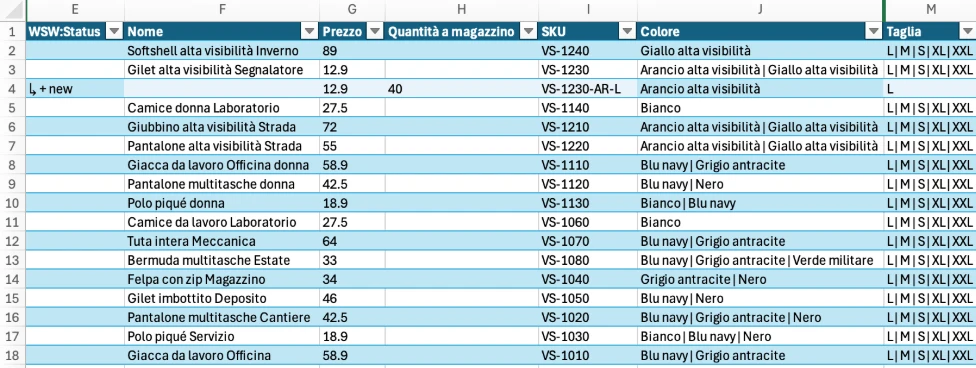
Row 4 is a variation, indented beneath its product. The parent, on row 3, lists the possibilities. The variation fixes a single one, orange size L, with its own SKU and its own stock. The arrow and the «+ new» in the first column say that the row is new and does not exist in the shop yet.
The add-in reads the category tree from the shop and shows it with tick boxes, hierarchy included. You choose the ones you need and it writes them into the cell with the right separator. The identifiers are the ones WooCommerce expects, so a typing mistake cannot create a duplicate category.
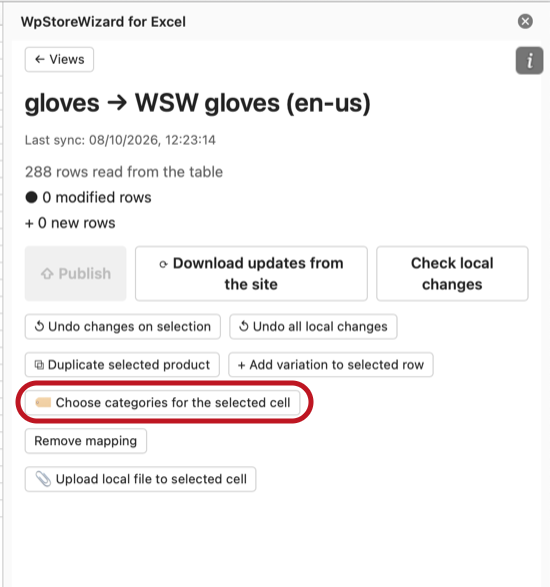
The «Choose the categories for the selected cell» button is in the panel. You click the categories cell, then the button.
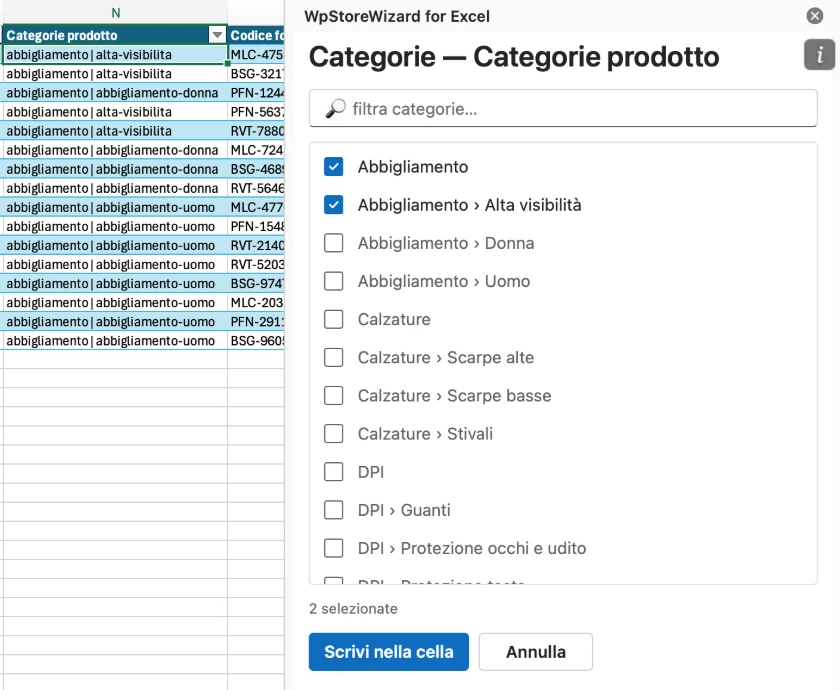
The list comes from the shop, with the full hierarchy. Two ticks, Clothing and High visibility, and «Write into the cell» fills the cell in.
Paste the address of an image already online, or upload a file from your computer without leaving Excel. The address stays in the cell like any other value. Check, publish, and the image is on the product.
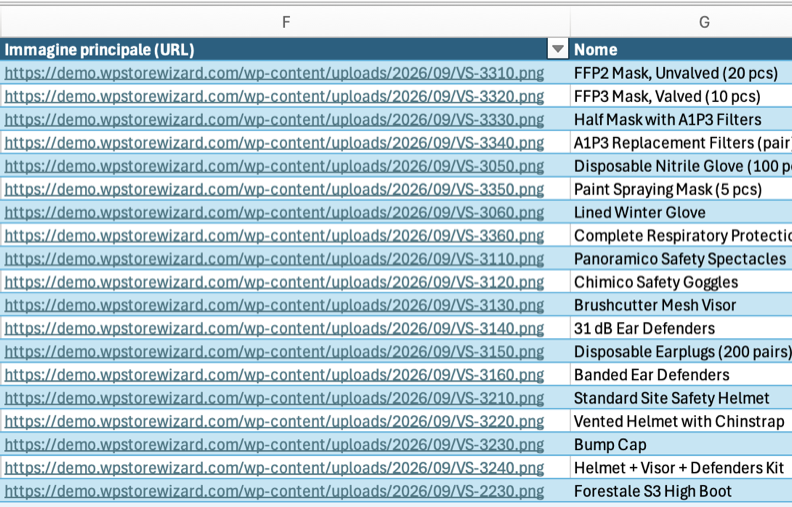
The image is an address in a cell, in the same table as names, prices and SKUs. You paste it, drag it down, replace it in bulk like any other value.
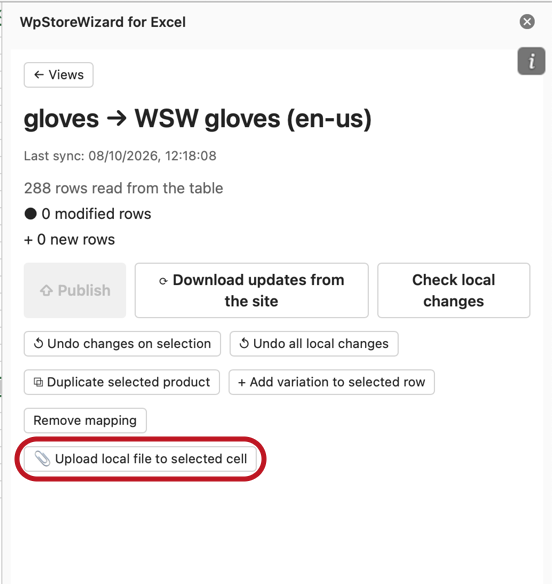
For a file you only have on your computer there is «Upload local file into the selected cell». The add-in sends it to WordPress and writes the address into the cell.
API keys are created in the WordPress admin. Every key has a level: none, personal, by role or global. The level decides which views the person using it can create and share. The permissions for creating products and for editing them are separate. A collaborator sees and edits only what has been assigned to them. You need this when several people work on the same catalogue.
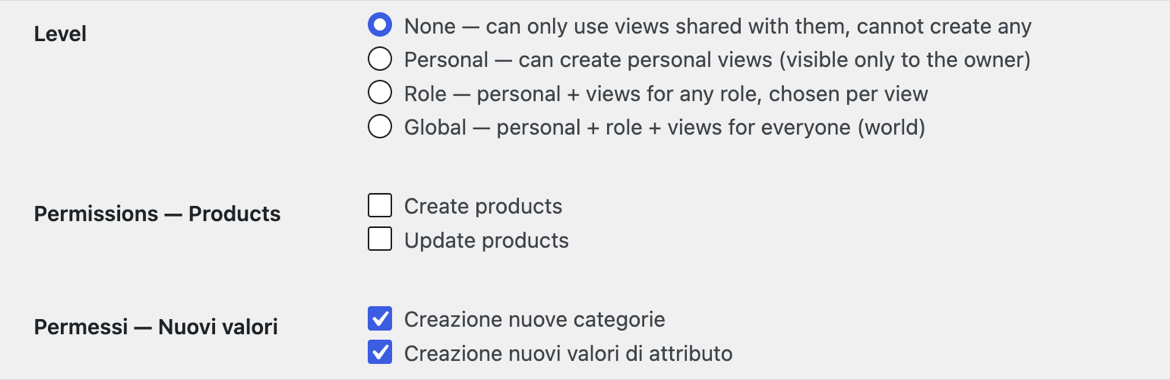
Level and permissions are chosen when you create the key. A warehouse key can edit products, without creating new ones and without adding categories. The two ticks on new values can only narrow what the plugin already allows.
Two people can work on the same catalogue without treading on each other. If somebody changes a product from the site while you have it in Excel, publishing stops on that field. A window will show you three values: the starting one, yours and the shop's. You choose which to keep. The «Download updates from the site» button heads the problem off, because it realigns the sheet before you start writing.
The language is one of the choices you make when you create the view. The products arrive in the sheet already translated. What you edit goes back to the right language version, without you having to link the two versions by hand. WPML is required on the shop.
With an active licence the plugin updates from the WordPress admin, like any other. No manual reinstalls, no files to upload over FTP.
Not sure which plan you need? Write to us, we reply within the next working day.
Buy