
Documentation
From buying the licence to publishing your first changes, in seven steps.
Buy the licence
On this site, choose the plan that suits your catalogue and click Buy. The plans differ only in the maximum number of products you can manage: the features are the same in all of them.
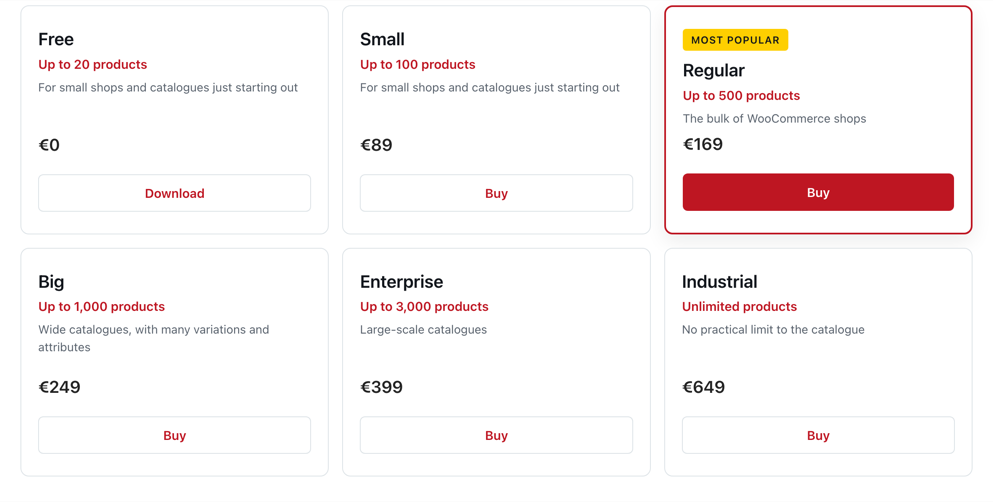
If your shop is multilingual, every translation counts as a product: 300 products in two languages make 600.
Install the plugin on your site
In your WordPress go to Plugins → Add plugin and click Upload plugin. Choose the wpstorewizard.zip file you received with your licence, install it and activate it.
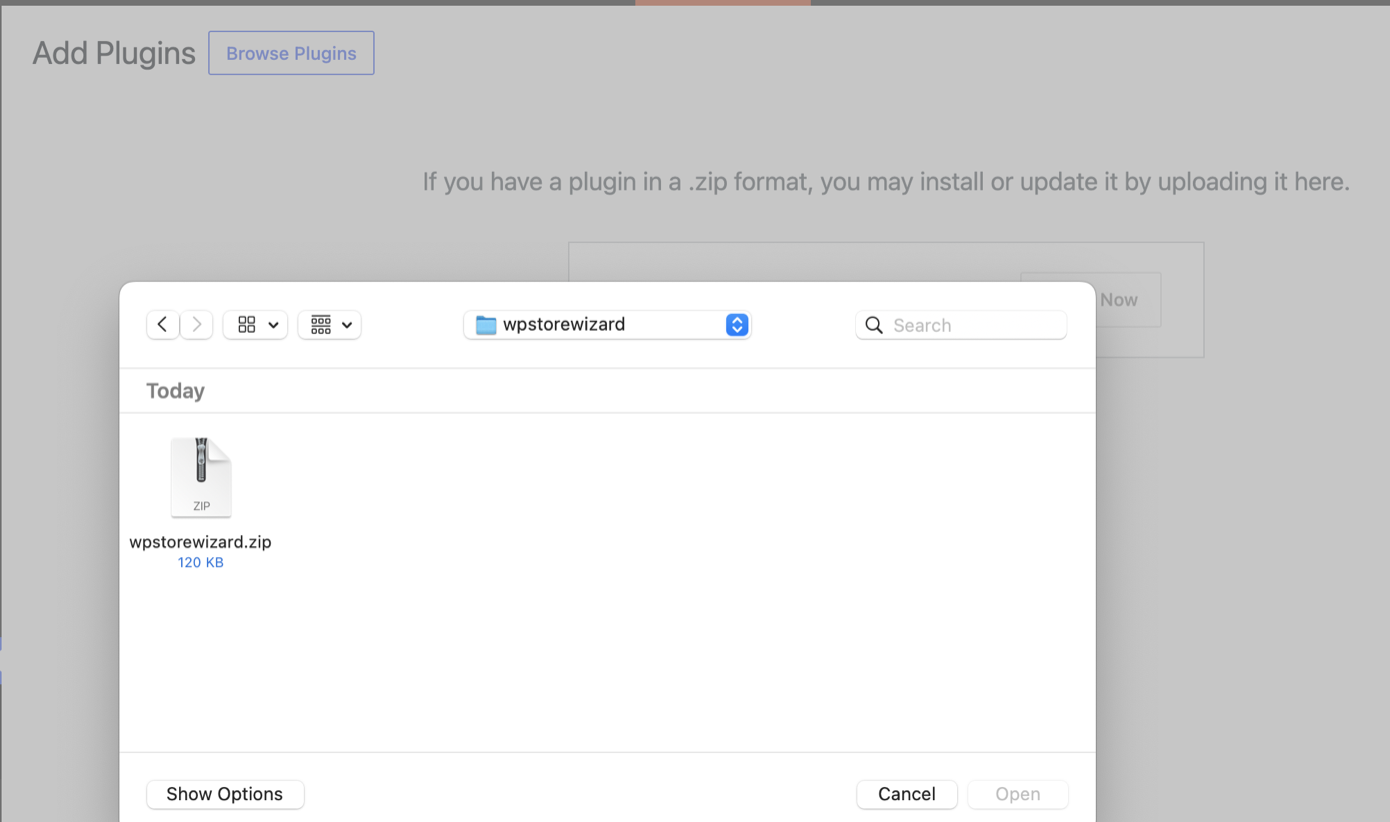
The plugin uploads like any other. From that moment the WpStoreWizard entry appears in the WordPress menu.
Create an API key
This part is done in the WordPress admin. Go to WpStoreWizard → API keys and create a new one. The level you choose, personal, by role or global, decides who will be able to see and use the views created with that key. The key is shown in full only once: copy it and keep it aside, you need it at step 5.
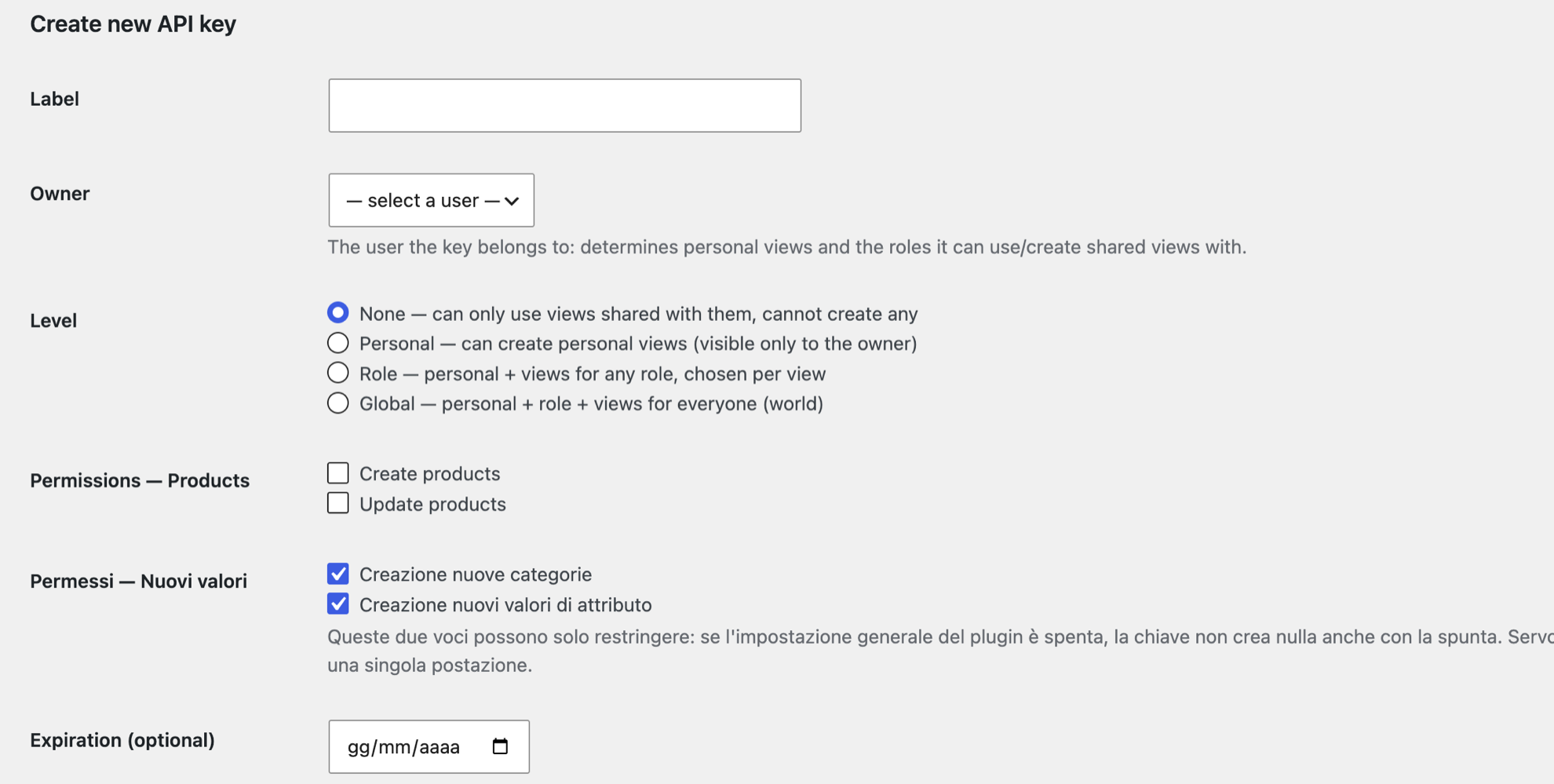
The key is created in WordPress, under WpStoreWizard → API keys. The level decides which views the person using it can create. The permissions decide what they can write into the catalogue.
Install the add-in in Excel
Open Excel and click Add-ins in the ribbon, then My add-ins. Upload the file supplied with your licence.
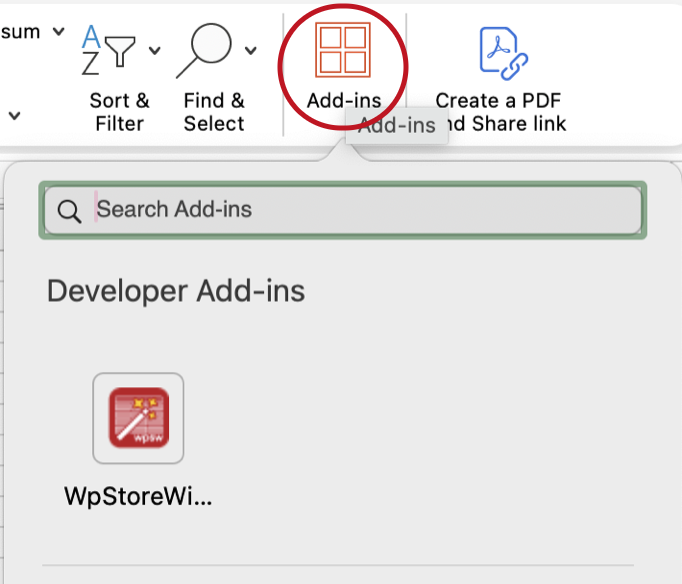
The add-in is installed once per workstation. From then on it stays among your add-ins and in the Excel ribbon.
Connect the add-in to your site
The first time it starts in Excel the add-in asks for two things: your site address and the API key. Paste the full address, with https://, and the key you copied at step 3. Click Connect.
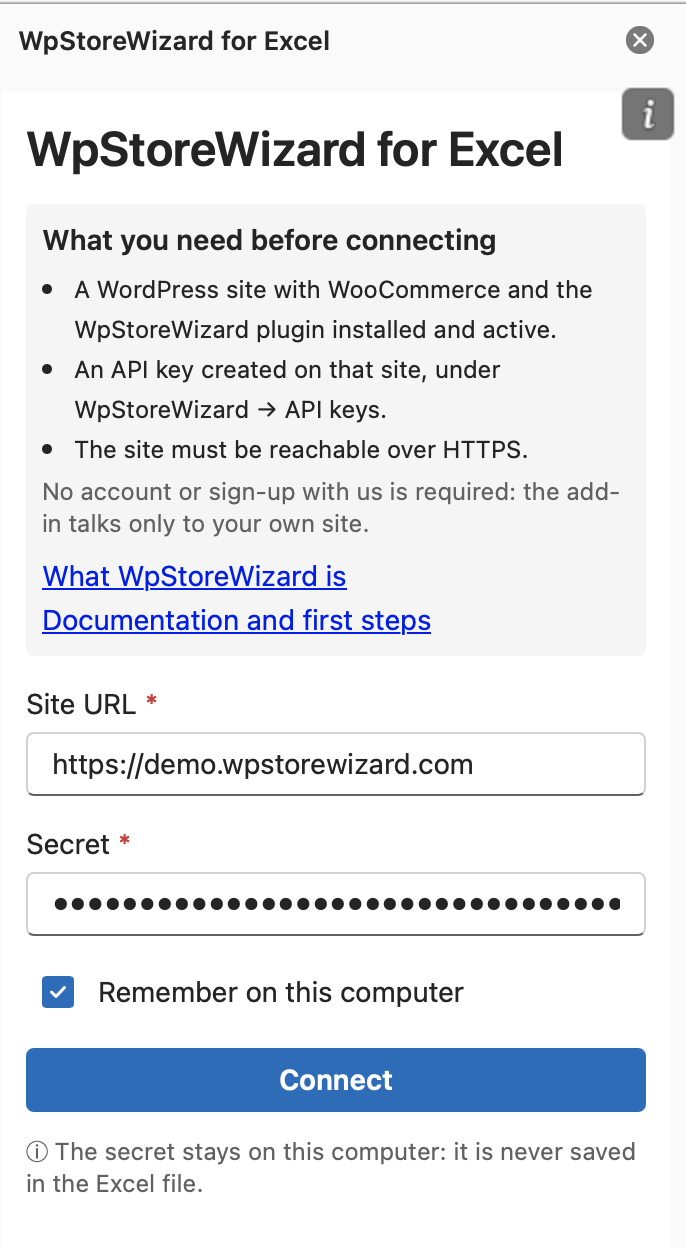
The key stays on your computer and is never saved inside the Excel file. Tick «Remember on this computer» and it will not ask you again.
Create a view and download it into the sheet
From the add-in open Views and click + New view. Give the view a name and choose who will be able to use it. Add the filters that decide which products come in, for example category, price, stock, attributes or language. Then tick the columns to include, which are also the only editable ones. Save, go back to the list and click Map. The add-in creates a sheet in your file named after the view and downloads the products into it. Later on, Download updates from the site reads the shop again without rebuilding the view, and brings what has changed back into the sheet.
Edit and publish
Edit the cells however you like, hundreds of rows at a time. Then click Check local changes. The add-in compares the sheet with what you downloaded, marks the rows you touched and switches publishing on. Click Publish: only the products you changed will be updated on the site.
The prices were edited, checked and published in half a minute. While sending, the panel counts the products one by one, and at the end says how many it updated.
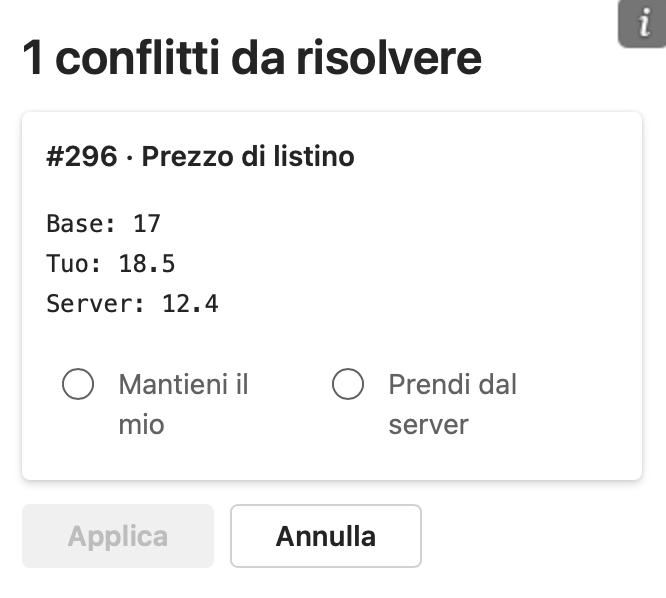
The conflicts window. No change is overwritten in silence. If somebody else has touched the same product from the site, the add-in stops and puts three values in front of you: the starting one, yours and the shop's current one. You decide, field by field.
Frequently asked questions
Do I need to know Excel at an advanced level?
No. If you can edit a table and copy and paste cells, you already know how to use WpStoreWizard.
What happens if I get something wrong?
Only the columns included in the view can be written to. You cannot touch fields by mistake that you did not plan for. And until you click Publish, nothing reaches the shop.
Can several people work on it together?
Yes. Create an API key for each collaborator, with the permission level and the views they need. Each person sees only what has been assigned to them.
Need more help?
Write to us from the Contact page, or at info@wpstorewizard.com.